Data browser
Browse, filter and edit rows in full screen, follow foreign keys, find any table across the fleet, undo edits, and put rows back from a backup.
The Data browser opens a database's tables and views in tabs: rows in an editable grid with search, filters, sorting and paging, the table's structure, and a SQL console. It works the same on MariaDB, MySQL and PostgreSQL.
Which login it connects as is set per instance (Data browsing connects as, in the instance's settings): the admin login (only instance administrators may then browse), a dedicated login you create, or Fleetdock-managed roles confined to each database. See Security.
Editing rows
Edits stay pending in the tab until you save. Rows are identified by their primary key (or a
NOT NULL unique key) and each change touches exactly one row or nothing. Tables without such a
key are read-only here; use the SQL console. Generated columns are shown but cannot be edited.
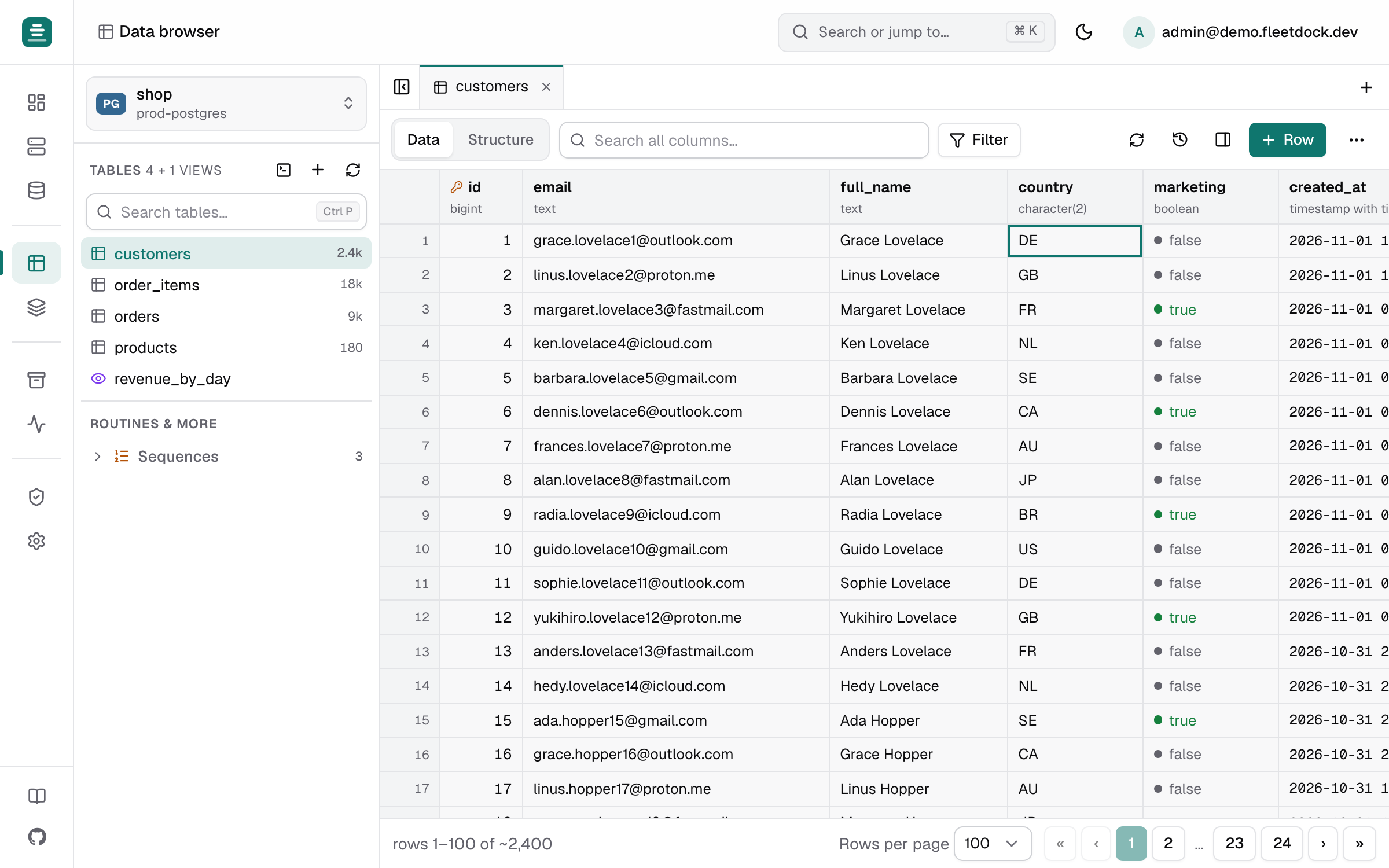
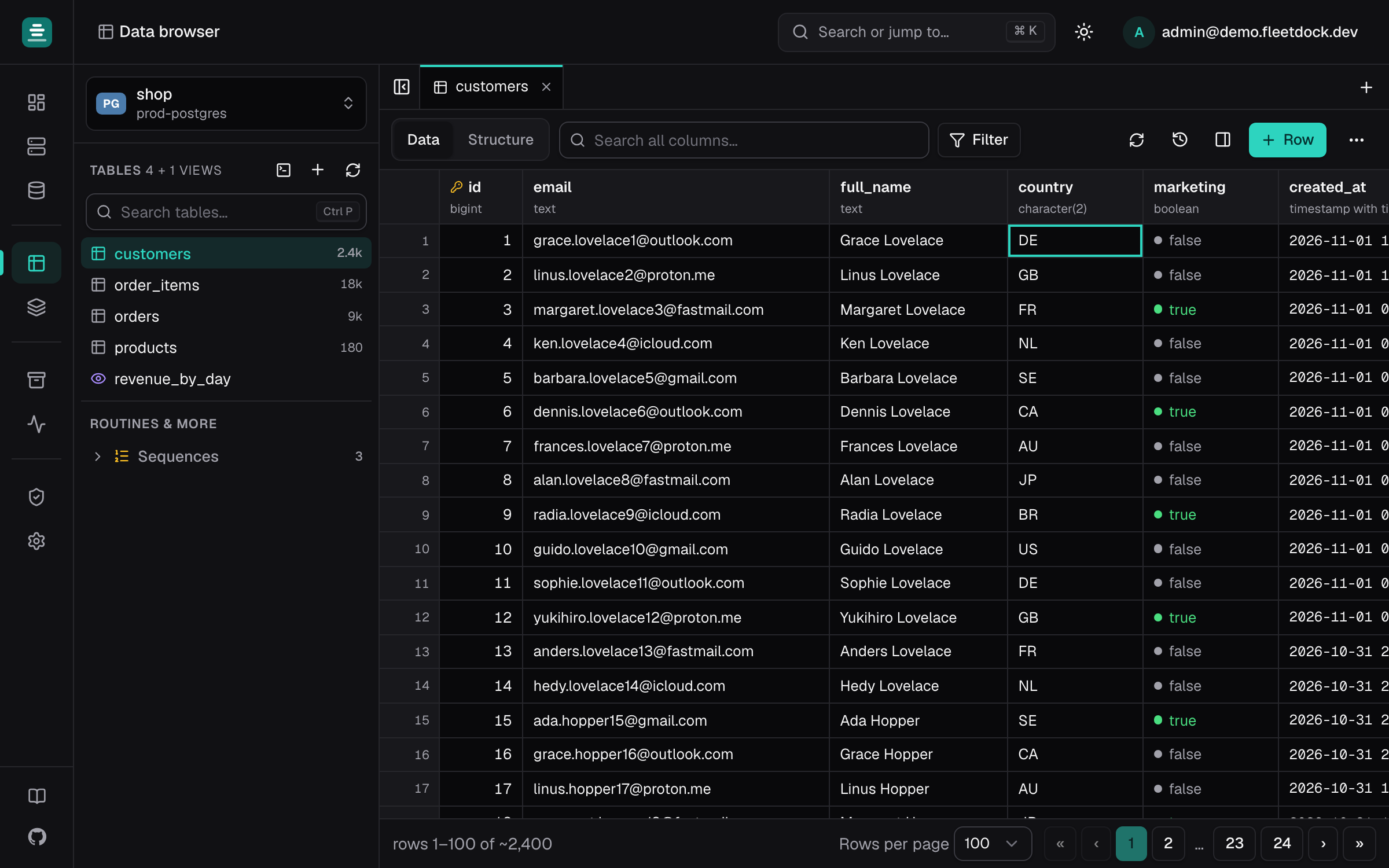
Full screen
The button at the end of the tab bar, or Alt+Shift+F, hides Fleetdock's sidebar and top bar so the tables use the whole window. Your browser remembers the choice. In full screen the bar also has the theme switch and a button for the browser's own full screen. Press the shortcut again, or the button, to bring the sidebar back.
Schemas
In a PostgreSQL database with several schemas, the picker above the table search chooses the
schemas the list shows. Tick the ones you want, use Only to see one alone, or All schemas,
which also includes schemas created later. Fleetdock remembers the choice per database, in your
browser, and the ER diagram uses the same one. The first time, a database opens
on public, or on its biggest schema when public has no tables.
Searching the list still looks everywhere: when other schemas have matches, the last line says "7 more in other schemas"; Show lists them without changing your choice. Opening a table from elsewhere (a foreign key, Ctrl+K, a link) works whatever the choice.
Saved views
The Views menu in a table's toolbar keeps a set-up of the table under a name: its filters, search, sort, hidden and frozen columns, column widths and rows per page.
- Save current view… names it. Tick Share with everyone who can open this database to put it in your colleagues' menus too.
- Pick a view to apply it. The button then shows its name, with a dot once you change something; Update saves your changes into it (your own views only).
- The link button copies a link that opens the table in that view. People who can open the database and see the view (it is yours, or shared) get the same rows.
- Only the person who saved a view can rename, share or change it. A shared view can also be deleted by someone who may change the database. Saving, changing and deleting views is recorded in the audit log.
Columns and rows
- Columns in the toolbar picks the columns to show; Hide column in a column header's menu (right-click) hides one. Freeze columns up to here keeps the first columns in place while you scroll sideways. Both are remembered with the tab.
- The row panel (the rows button in the toolbar, or Shift+Enter on a row) shows the selected row as a form: every column with its type and full value. Edit any field there; the change joins the tab's pending edits. Arrows move to the previous and next row.
- ⋯ → Taller rows switches to roomier rows; Compact rows switches back.
- Pages of up to 500 rows scroll smoothly: only the rows in view are drawn.
Filters and export
Filter builds conditions on columns; all of them must match. Besides =, ≠, <, ≤, >, ≥,
contains and starts with, there are:
- is one of and is none of, with a list of values separated by commas (up to 1000);
- between, with a from and a to (both included);
- ends with and doesn't contain;
- is NULL and is not NULL.
A column header's menu has Filter…, which opens the editor on that column. Click a filter chip above the grid to change it.
⋯ → Export matching rows (CSV) downloads the rows the filters, search and sort select, all of them, not only the page on screen. Without filters it exports the whole table.
Following foreign keys
- A cell holding a foreign key links to the row it references. Composite keys are matched on all their columns.
- A row's menu lists Referenced by: the other tables whose foreign keys point at this row. Picking one opens those rows, already filtered.
Finding a table or column anywhere
Press Ctrl/⌘ + K and type part of a table or column name. Fleetdock searches every database of the fleet and shows where each match lives (database, server, type); choosing one opens it in the Data browser.
The index is refreshed in the background every FLEETDOCK_CATALOG_REFRESH_INTERVAL (30 minutes
by default) and right after structure changes made in Fleetdock. Only databases you may open
appear in the results.
Keyboard
Press ? anywhere for the full list. The most useful ones:
| Keys | Does |
|---|---|
| Ctrl+P | Find a table |
| Alt+N | New SQL query |
| Alt+[ / ], Alt+1…9 | Previous / next tab, go to a tab |
| Alt+PgUp / PgDn | Previous / next page of rows |
| Enter or F2 | Edit the cell |
| Shift+Enter | Row panel |
| Ctrl+S | Save the tab's changes |
| Alt+Shift+F | Full screen |
Undo and change history
Every insert, edit and delete saved in the Data browser is recorded with the row as it was before and after.
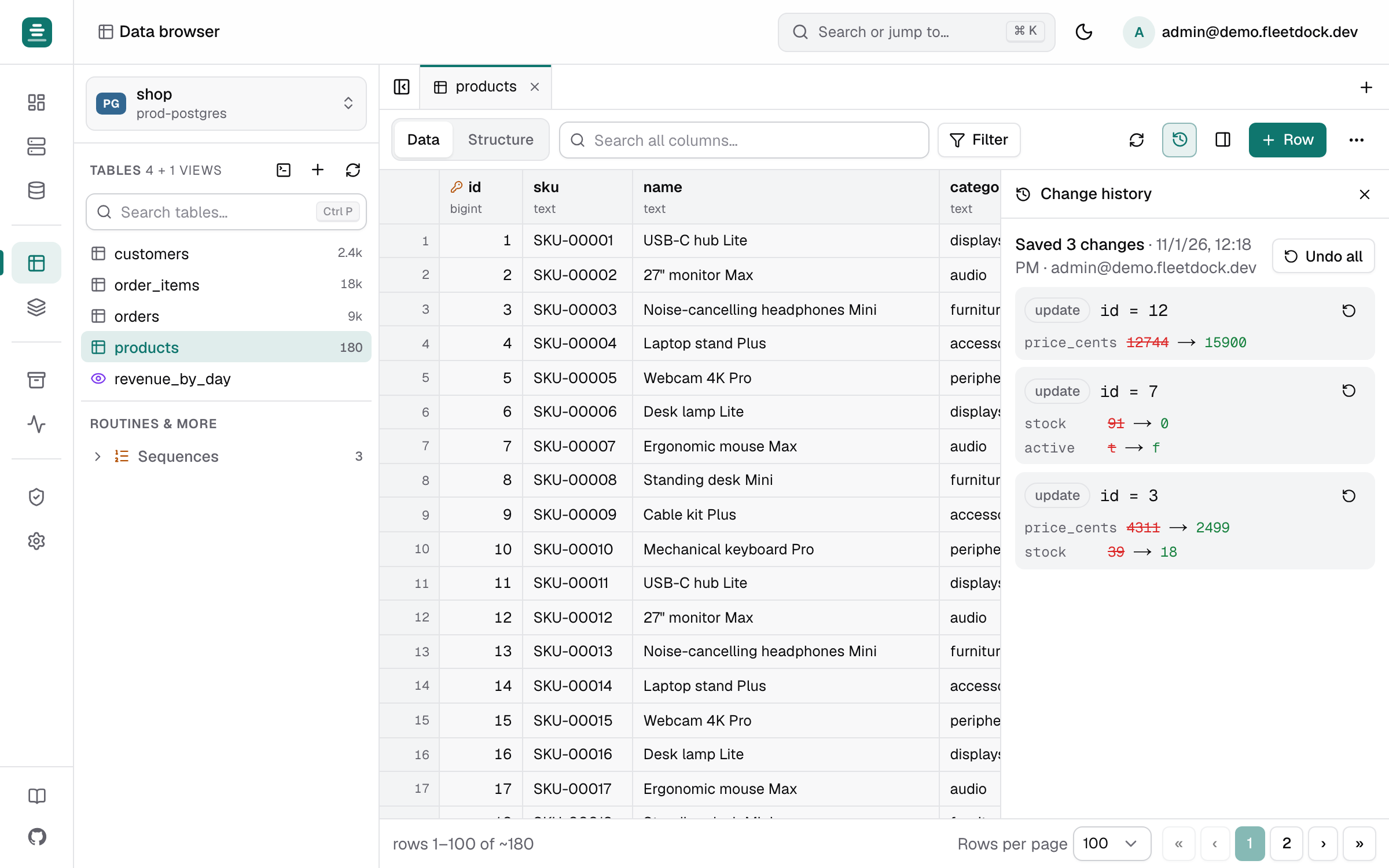
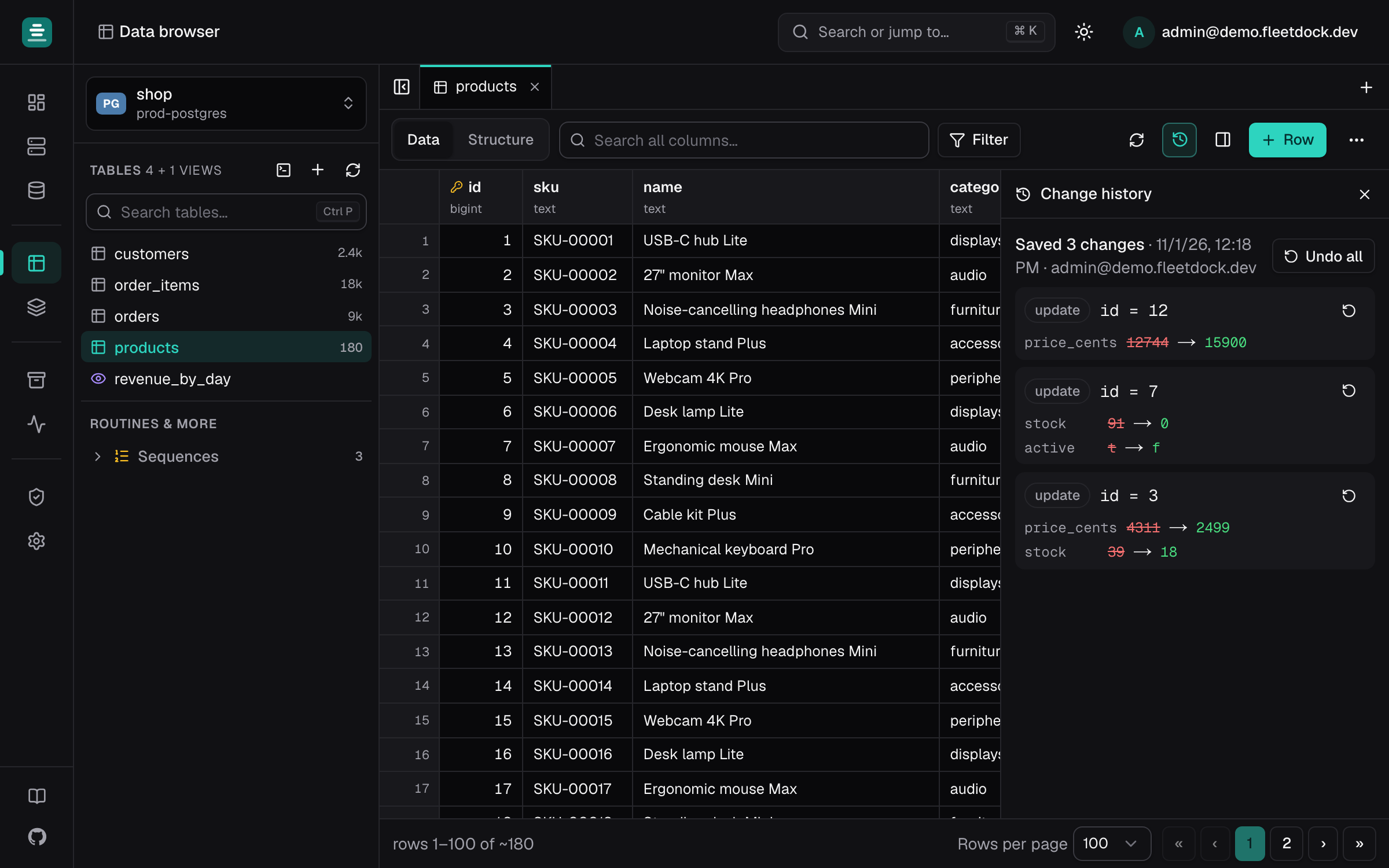
- Undo appears in the confirmation right after saving.
- The table's Change history (the clock button) lists every save with who made it, when, and what changed. Undo a single row or a whole save from there.
- If someone changed the row after your edit, Fleetdock tells you and asks before overwriting their change.
The journal is kept for FLEETDOCK_ROW_CHANGE_RETENTION (a week by default; 0 turns it off).
Undo restores the rows you edited. It does not revert what triggers or cascading deletes did to other rows, and changes made in the SQL console or by CSV import are not journaled.
Compare with a backup
A table's ⋯ → Compare with a backup… answers "what changed since last night?" and lets you put individual rows back:
- Pick a completed backup. Fleetdock restores it into a temporary database on the same
server (named
fds_…). This takes about as long as a restore. - Compare lists the rows changed, deleted or added since the backup, matched by primary key, with the columns that differ. Large tables are compared in steps; Find more continues.
- Tick rows and Restore from backup: changed rows get the backup's values, deleted rows come back, and rows added since are deleted (you confirm that separately).
Each restored row is checked first: if it changed again since you compared, it is skipped rather than overwritten. A restore is recorded as one save in the change history, so Undo reverts it.
The temporary database is dropped after FLEETDOCK_BACKUP_COPY_TTL (two hours by default).
Keep longer extends it up to a day; Discard drops it now. Only one copy per database
exists at a time.
Opening a backup needs backup:write on the database; restoring rows needs database:write.
The copy uses disk on the production server while it exists, and backups larger than
FLEETDOCK_BACKUP_COPY_MAX_BYTES (10 GiB by default) are refused.